Auto Mouse Click for Mac to Automate Mouse Clicking, Keystroke Pressing, and Other Macintosh Automation Tasks
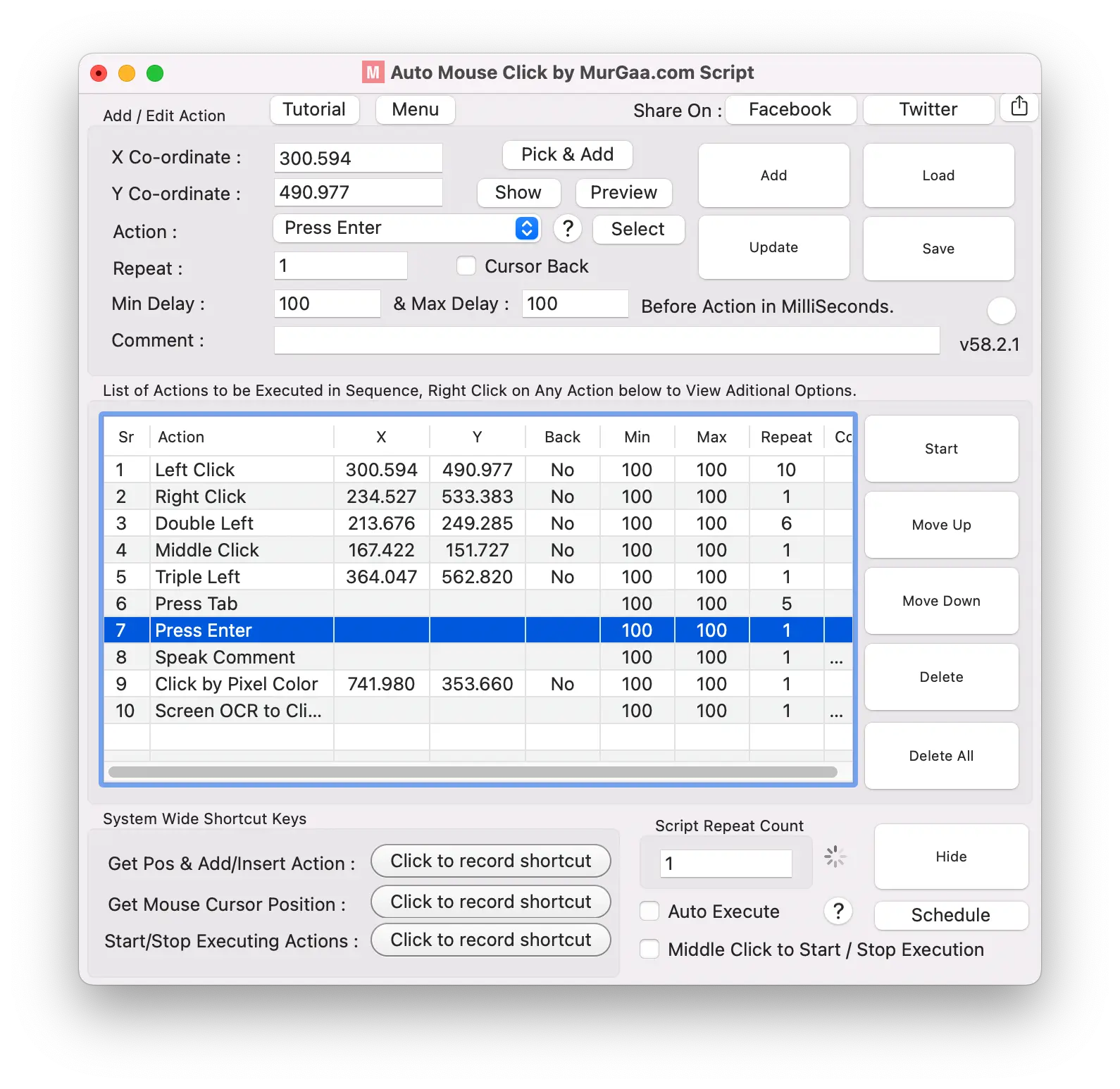
Automate mouse clicking, keystroke pressing, and other Macintosh automation tasks with Auto Mouse Click for Macintosh. This software utility allows you to create scripts to automate repetitive tasks like mouse clicking at predetermined screen locations, automating keystrokes, text-to-speech conversion, finding and clicking pre-configured pixel colors, optical character recognition to read text from the screen, and much more. Configurable keyboard shortcuts allow you to pick screen locations to be clicked, start or stop script execution, pick screen pixel colors for clicking by pixel color, and for any other automation purpose.
Free Trial Download of Auto Mouse Click for Mac
Download a free trial of this Macintosh automation utility named Auto Mouse Click by MurGaa.com on recent or latest versions of macOS. This application runs on Intel processor-based Macs as well as Apple silicon Macs. You can alternatively review the screenshots below to get an idea of what this software utility for Macintosh can do and whether it can help your workflow.
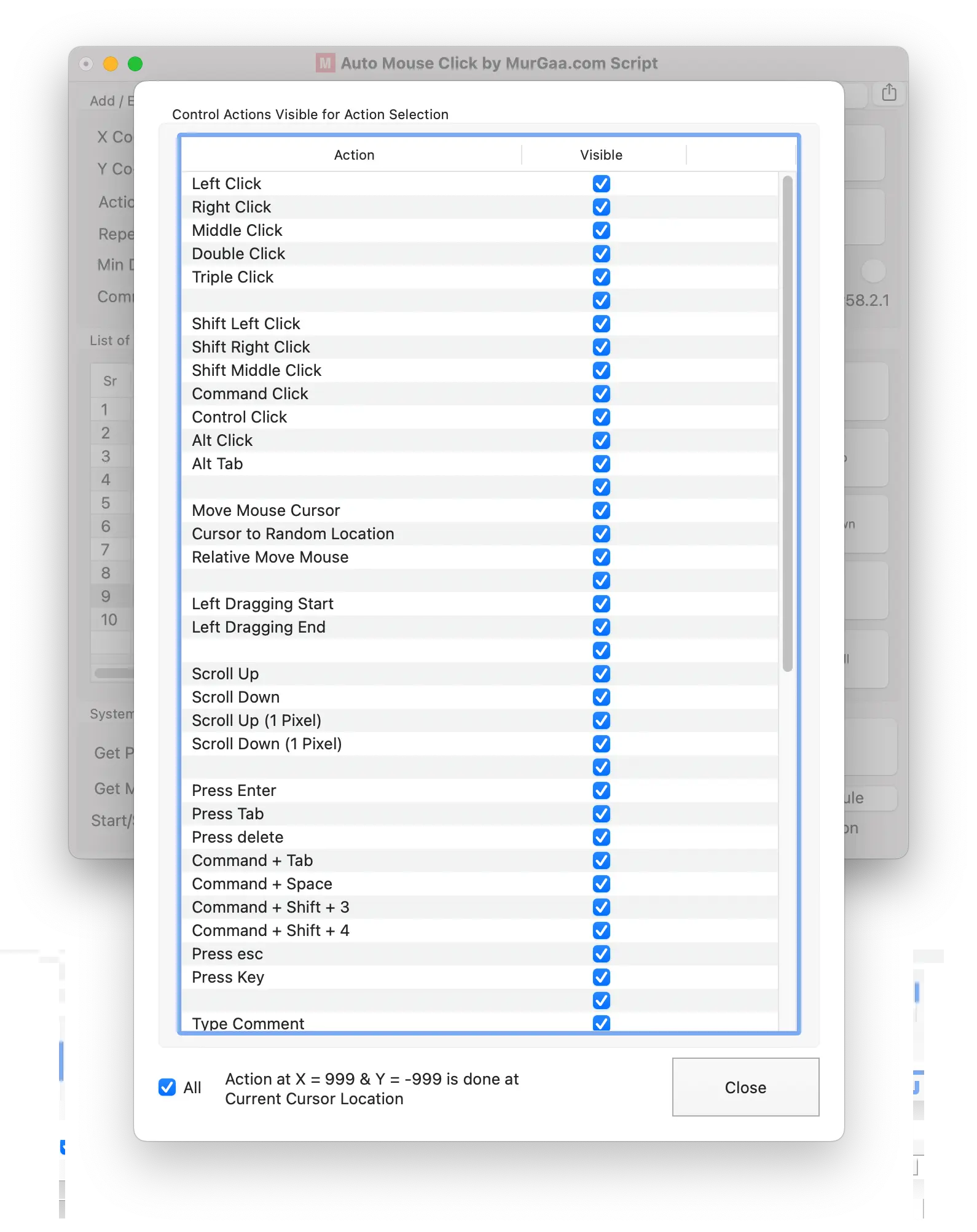
Whether you want to click at the current mouse cursor location (with X = 999 and Y = -999) or at a fixed screen location (picked with a configurable keyboard shortcut) finite or infinite times, you can simply create a script and automate mouse clicking on your Mac. Mouse movement, mouse dragging, left-click, right-click, Command + Click, scroll up, scroll down, and other mouse actions can be automated with this Macintosh automation utility. Apart from mouse clicks, you can also simulate keystrokes and text typing. Keystrokes like Tab, Enter, Command + Tab, and Command + Space can be simulated or automated with Auto Mouse Click for Mac by MurGaa.com.
Creating and managing a macro script allows you to easily view and understand what the script will do. Editing the script is quick and intuitive with the provided graphical user interface. This Mac automation utility makes it easy to click at single or multiple screen locations, press keystrokes, control script execution speed, and configure how many times an action or script is executed.
Screenshots of Auto Mouse Click for Mac
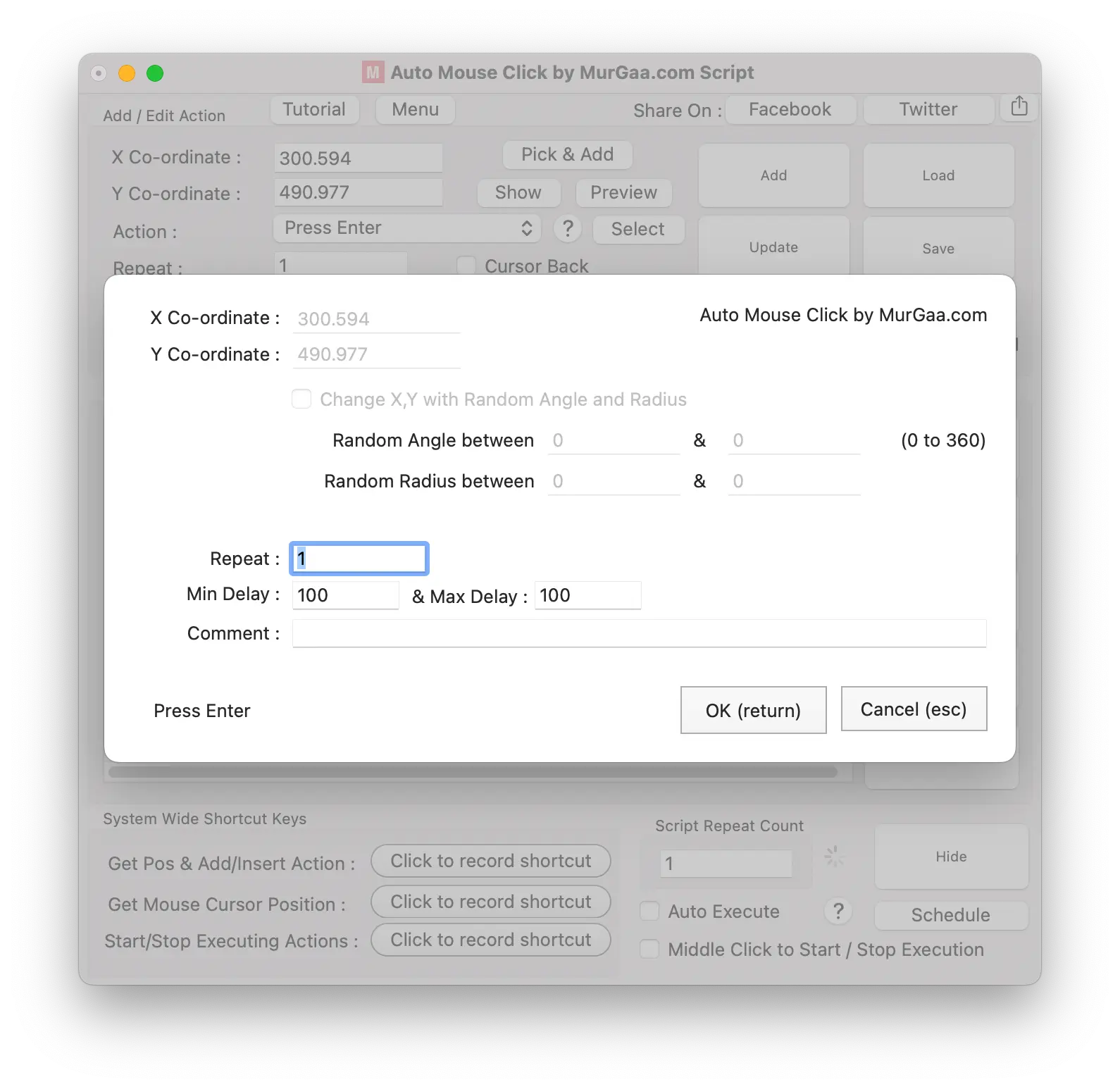
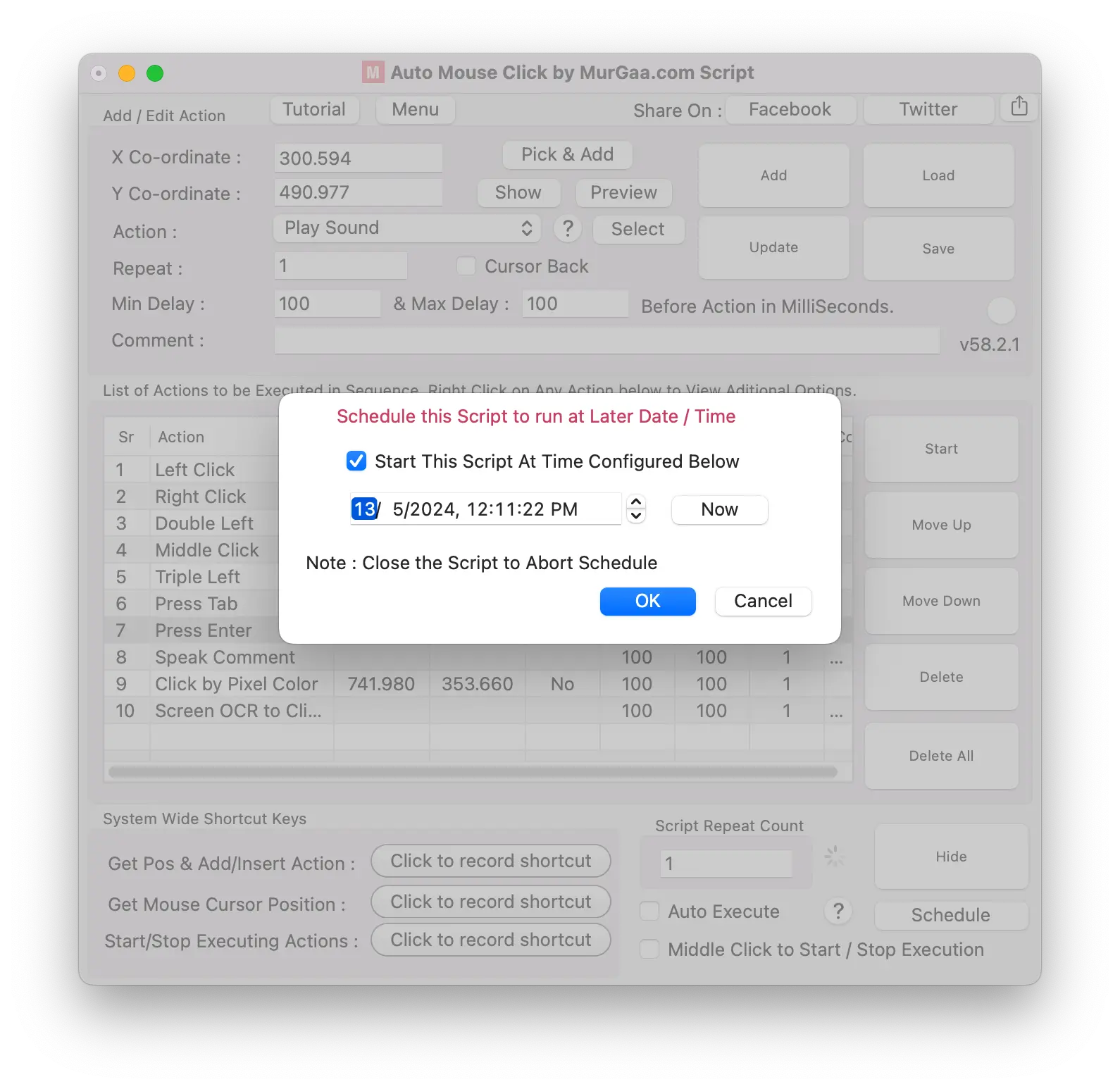
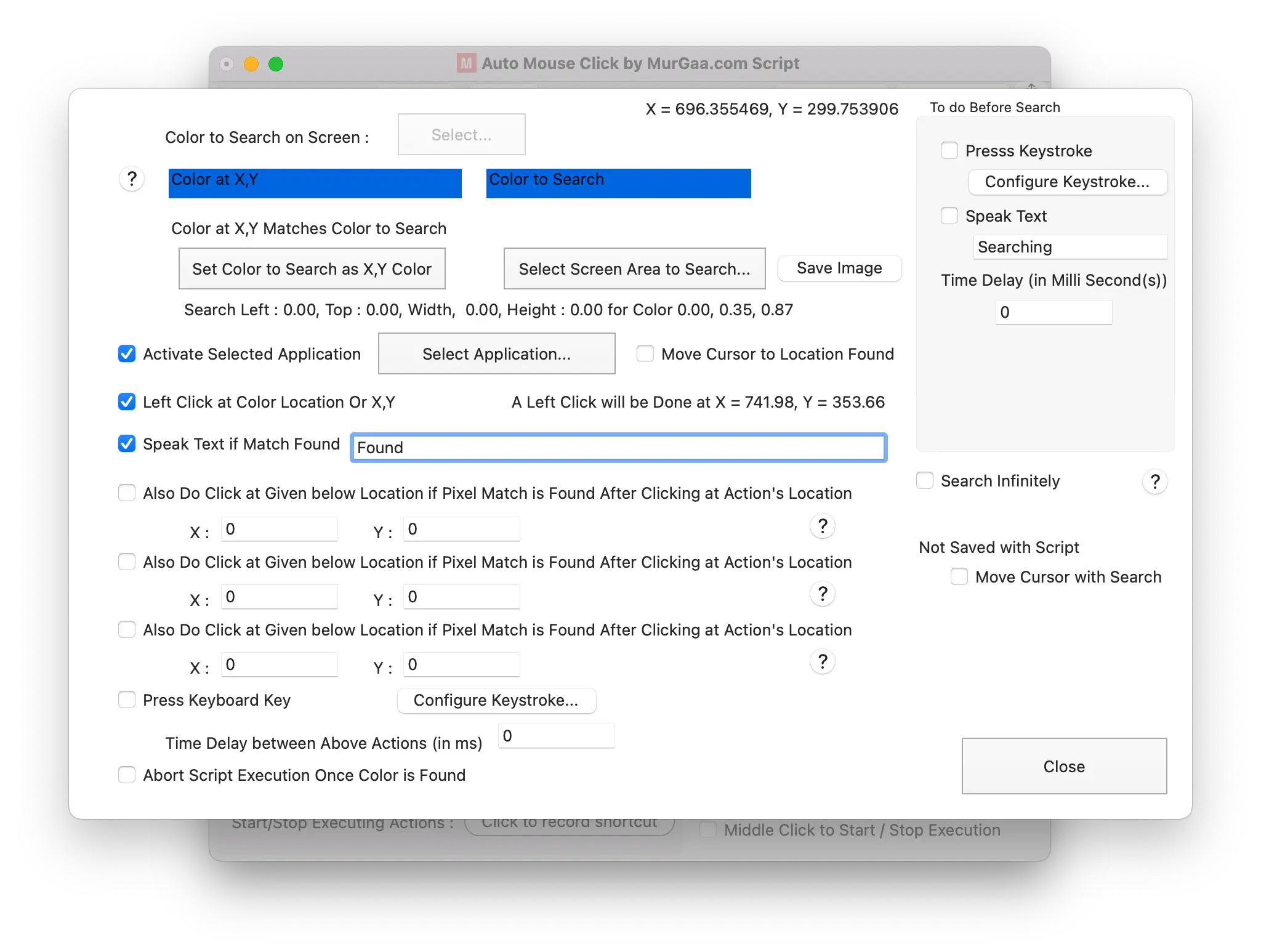
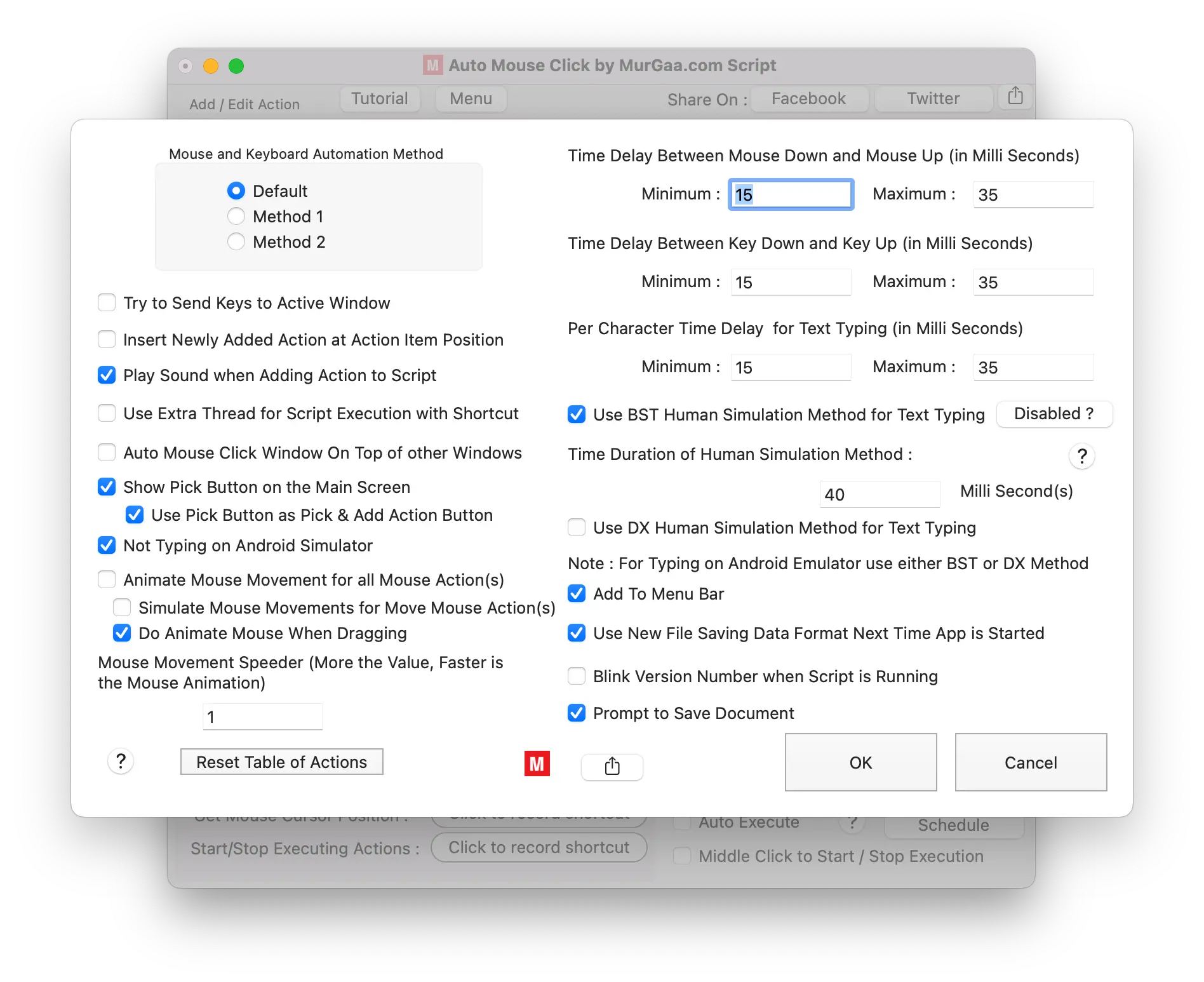
Below are a few screenshots of various screens in Auto Mouse Click for Mac, along with a short description for each. When an action requires additional parameters beyond those listed in the action selection, you can double-click on the action in the list to open the action parameters screen and modify or view its additional settings. You can also right-click on the main screen of the software to view a context menu containing additional features to assist you in creating macro scripts to automate repetitive tasks on your Mac.
Frequently Asked Questions About Auto Mouse Click by MurGaa.com
Below are short questions and answers to help you quickly understand the features of this Macintosh automation utility named Auto Mouse Click by MurGaa.com. Click on any question to expand its answer.
How to Add Action(s) to the Script?
Select the required action from the Action Types dropdown and click the Add button. You can also double-click an action added to the list to edit its parameters. When adding mouse automation actions such as Left Mouse Click or Right Mouse Click, it is convenient to configure a keyboard shortcut at the bottom of the software window to automatically pick (and optionally add) the screen location where you want the action performed.
How to Run / Execute a Script Infinite Times?
Configure a keyboard shortcut to start/stop the script, then enter a Repeat Count value of 0 in the Script Repeat Count field at the bottom of the main screen. Pressing the keyboard shortcut will start script execution, and pressing it again will stop execution.
How to Run / Execute a Script Finite Times?
Configure a keyboard shortcut to start/stop the script, then enter the desired Repeat Count value (e.g., 10, 100) in the Script Repeat Count field at the bottom of the main screen. Pressing the shortcut starts execution, and pressing it again stops execution. The script will also stop automatically once it completes the configured number of repetitions.
How to Edit Parameter(s) of an Action in a Script?
In the list of actions, select the action whose parameters you wish to edit, then double-click the action to view and edit its parameters.
How to View Other Features Offered by Auto Mouse Click by MurGaa.com?
Click the Menu button at the top of the main screen of this Macintosh automation utility to view additional features. You can also right-click on the main screen to open a context menu with extra tools.
Can I Save the Script and Load It at a Later Date / Time?
Yes, you can save and load scripts at any time. Before executing a saved script, verify that it will work as intended by checking your screen layout and active applications. You can also use the Schedule button to start script execution at a future date and time.
What if I Have Multiple Mouse Click Locations to Perform in a Script?
If your script requires multiple mouse clicks across various screen locations on Macintosh, assign a keyboard shortcut to pick the screen location and add a new left click. By moving your mouse cursor to the desired location and pressing the assigned shortcut for Get Position and Add / Insert Action, you can quickly build complex scripts. Alternatively, you can record and play back mouse and keyboard actions with Mouse and Keyboard Recorder for Macintosh.
How to Automate Mouse Clicks at the Current Mouse Cursor Location?
Add a mouse click with X = 999 and Y = -999 to your script to automate clicking at the current mouse cursor location. To click at specific fixed screen coordinates, pick X and Y coordinates using the configurable keyboard shortcuts at the bottom of the main screen.